 This is a Huge collection Leopard Icons. This collection contain (high resolution) over 650 leopard icons. All in .png format. Hope you like it guys. download here
Rabu, 17 September 2008
Huge Collection Leopard Icons
This is a Huge collection Leopard Icons. This collection contain (high resolution) over 650 leopard icons. All in .png format. Hope you like it guys. download here

How to convert bin / cue to ISO in Mac OS x
Since Parallels doesn’t like .bin/.cue images, i had to convert it into an .iso image. A few guides pointed out that simple renaming of the files might be enough, but that didn’t work at all. So i was searching for free-ware solutions and couldn’t find anything. Toast Titanium was the last chance.
You simply right click on the .bin file and open it with Toast. Next you click “Save As Disc Image”.

Finally you just rename the file extension from the default .toast to .iso.

After a minute Toast was ready and i was able to boot from the .iso image in Parallels. Worked for me.
Sabtu, 13 September 2008
Mac OS X Leopard Bible

The beauty of Leopard is that there is so much more than meets the eye, including over 300 new enhancements and its ability to run on both Intel PCs and PowerPC Macs. This comprehensive reference is your best guide on how to tame this powerful new cat. You'll find the latest technologies, new wireless networking, cool Dashboard widgets, a reflective Dock, and more. Discover secret tips and workarounds that even Apple doesn't know about.
Download Here
Earth Desk - The Life Earth On your Desktop
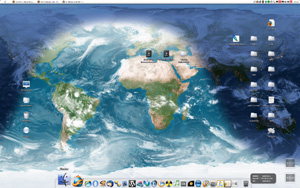
like innovative Mac applications. This one is know different. It is called EarthDeskand is designed to display an accurate picture of planet Earth on your desktop. It is really funky and an interesting way of keeping your desktop interesting and dynamic. I really enjoy having it on my desktop. It livens things up a bit.
Earthdesk is slightly different to most applications your find. First off it is run from a preference pane. There is no dock appliction a as such, although there is a quick launch menu item. It is designed to be set up and enjoyed. There are lots of little features which you can change and adjust. These are explained later.
In a nutshell, what happens when you render the application is a “live” image of the earth is projected onto your desktop. This is a graphical image of earth with overlays of clouds and the night, with city lights. Its a clever way of seeing what state the earth is currently in. It is also quite useful in finding out what time it is roughly in a specific location. This live projection moves throughout the day as shown below, gathering data from the Internet to render your image.
There are hundreds of configurable options. Such as map type, shading, centering. Amount of detail, zoom as well as update intervals. You can really fiddle with how your desktop wallpaper looks and works. Like I have said it is constantly changing. As a result you don’t see the same boring image.
There are a couple of niggles I have found with this program. One example is the render time. It takes quite a while to update your desktop image. As well as this it seems to be optimized only for single core, meaning it takes twice as long as it could. Thankfully it only needs to render every couple of hours. Another problem which I have found is that the clouds don’t seem to update as often as they should. Mayby clouds don’t move that fast or I can’t work the settings.
This program does cost $24.95. It is reasonably priced for what you get. You can spend a long time adjusting the settings and getting it work for you. In the long run it is probably worth it. There is also a Windows version which I assume is a bonus.
No Ice Cream Truck for Soundwave in 'Transformers: Revenge of the Fallen'

Aside from discussing about Soundwave, Orci also addressed Jazz's issue hinting that the fallen Autobot in "Transformers" will not have its full return or be presented in flashbacks. On Megatron's possible new name, Galvatron, he simply said, "We talked about it a lot." Additionally, he confirmed that the principle photography is going to be wrapped up in "another five weeks or so".
On other "Revenge of the Fallen" news, AICN reported that the sequel's full trailer will be making its way to the big screen attached to J.J. Abram's "Star Trek" which is expected to be screened in theaters on May 8, 2009. Furthermore, Slash Film suggested that its teaser trailer is most likely to be released along with "Eagle Eye".
Due to be released on June 26, 2009, "Revenge of the Fallen" comes from director Michael Bay and the screenwriting team of Ehren Kruger, Alex Kurtzman and Orci. It follows the story about two clashing robot clans on Earth. This time, the heroes will be facing a stronger and more powerful villain, the Fallen, which forces them to bring back their foe Megatron.

Starring Shia LaBeouf as Sam Witwicky, the human friend of the friendly alien robots Autobots, the flick is also supported by Megan Fox, Josh Duhamel, Tyrese Gibson, John Turturro, Isabel Lucas, Rainn Wilson and many others. The production was once shortly halted due to LaBeouf's car accident in late July.
Fun Mac Apps to Waste Time :D
Quinn

MacSaber

Photo Booth

unBooth

Go (Goban)

Frenzic

Voice Candy

UniSudoku

Phun

Delicious Library

Kamis, 11 September 2008
Spore Cheat
I’m loving Spore at the moment. I haven’t had as much fun on a game for a long while. Its time that out Mac’s get a good game to play on. I was getting worried that PC’s were having all of the fun. Anyway, sort of following on from a previous post done earlier today - Spore Game Review, I have found some cheat codes for your game of Spore.
addDNA - increase your DNA points by 150.
AntiAliasGIF - Antialiad GIF captures and set a background color.
capturePlanetGIF - captures a spinning GIF of the planet you’re on.
clear - clears the debug console.
freeCan - toggles free camera mode.
freedom - [on | off] enables and disabled editor complexity limits. Creations that break the limits will not be pollinated.
Help - list all help cheats.
History - list the last n commands in the command history.
Killallhints - remove all hints from the game.
Levels - level cheats.
moreMoney - increases your money in civilization or space.
Movie - movie cheat.
Option - lists option or set of options.
PauseUIVisible - set or toggles whether the pause frame is drawn.
prop - displays or modifies properties.
Quit - quit game.
refillMotives - Replenishes depleted health and other motives.
SetConsequencesTrait - Sets the trait which will determine what super powers are available.
settime - Sets the time of day at the avatars position.
spaceCreate - unlocks and recharges creation tools while playing in space.
styleFilter - Applies a stylized look to Spore. Try -FilmNoir -OilPaint
AntiAliasGIF - Antialiad GIF captures and set a background color.
capturePlanetGIF - captures a spinning GIF of the planet you’re on.
clear - clears the debug console.
freeCan - toggles free camera mode.
freedom - [on | off] enables and disabled editor complexity limits. Creations that break the limits will not be pollinated.
Help - list all help cheats.
History - list the last n commands in the command history.
Killallhints - remove all hints from the game.
Levels - level cheats.
moreMoney - increases your money in civilization or space.
Movie - movie cheat.
Option - lists option or set of options.
PauseUIVisible - set or toggles whether the pause frame is drawn.
prop - displays or modifies properties.
Quit - quit game.
refillMotives - Replenishes depleted health and other motives.
SetConsequencesTrait - Sets the trait which will determine what super powers are available.
settime - Sets the time of day at the avatars position.
spaceCreate - unlocks and recharges creation tools while playing in space.
styleFilter - Applies a stylized look to Spore. Try -FilmNoir -OilPaint
toggleCaptureUI - toggles UI Image capture.
unlockSuperWeapons - Unlock all super weapons for your Civilization type.
unlockSuperWeapons - Unlock all super weapons for your Civilization type.
Selasa, 09 September 2008
99 tips For a Fast Performing MAC ( part 6 )

87) Clean Your Dock
Many people have found that a full dock has caused there computer to run slower. Clean it out by removing unused applications or stacks.
88) Block Ads With Firefox
Let web pages load quicker by blocking adverts. A lot of bandwidth, CPU and RAM is wasted with this extra content that you may not use. Use Adblock Plus for the best browsing experience.
89) Use Onyx To Run System Tasks
Use the computer program Onyx to run maintenance tasks to keep you Mac clean. One quick tip, only do tasks which you understand.
90) Use Tinker Tool

You can use Tinker Tool to remove parts of your computer that you don’t use. This can save you RAM since it doesn’t have to load and rendered by your computer. By careful before you use this tool and understand what you are doing.
91) Use MainMenu To Access Maintenance Scripts
Use a tool like MainMenu to access maintenance scripts which you can use to clean out your Mac on a daily basis.
92) Use A Smaller Screen
Having a massive 30inch monitor is nice and cool, but you computers graphics card has to render a lot of information. Use a smaller screen to free up your graphics card for other tasks.
93) Use Speed Freak To Prioitize Apps
Speed Freak can take your Mac applications and prioritize the order they are run. This enables you to give more CPU time to certain applications. The default on your Mac is that every application has the same CPU time.
94) Remove Shadows
For Tiger only, ShadowKiller can remove your shadows on your computer so you computer doesn’t have to render them. Save CPU, GPU and RAM. May look a bit funny though if you are used to shadows all this time.
95) Buy A Faster Mac
If you want a quicker Mac the best method is to buy as faster Mac. With these tips you will never make a Mac Mini into a Mac Pro, the only way of doing that is to buy a Mac Pro.
96) Learn To Touch Type
One of the biggest speed tips can be yourself. If you are a really slow typer you can save a lot of time by learning to touch type. There are hundreds of tutorials on the web about learning to touch type. Stop looking at the keyboard and learn where the keys are. Even better would be to learn Dvorak.
97) Reduce Finder Icon Size
In your Finder windows if you have massive icons, it means your computer has to render a massive amount of information. Reduce the size of the icons through the Show View Options.
98) Disable Spotlight For External Drives
Using Spotlight can be a major hog on resources. You can switch off Spotlight for external drives by adding it to the list under the Spotlight option in System Preferences.
99) Read Applekita
The best tip of them all. If you want to keep up to date with the latest speed tips. I regularly post tips to speed up your Mac and make it as fast as possible...:D
Minggu, 07 September 2008
IPhone 3G Telescope..(^0^)

You might remember a similar gadget which was released for the original iPhone. That’s old news. The new big boy in town is the iPhone 3G, so of course we’re all going to need a little update. While the iPhone 3G has been reported as having various networking snags, the new model continues to sell well. Even better than expected. So odds are that a nice chunk of you have upgraded.
If you had the iPhone Telescope for your original iPhone and loved using it to see clear images of objects in the distance, then the iPhone 3G Telescope is what you need for the upgraded Apple mobile phone. The 6x scope allows for an extra boost of sight-seeing juice with your iPhone 3G’s camera.
The iPhone 3G Telescope is optimized for the newer phone’s camera, complete with wide-angle shots, color reduction for a clearer shot, and an all-around effective way of curing your iPhone’s near-sightedness. The Telescope package even includes a neck strap so you can wear your iPhone like a traditional photographer.
The iPhone 3G Telescope seems like an awesome tool for members of the paparazzi and bird watchers who are in need of a speedy (supposedly) 3G network. While it might not be powerful enough to peer into the far reaches of the night sky, it sure can invade someone’s privacy pretty well. :D
Sabtu, 06 September 2008
99 tips For a Fast Performing MAC ( part 5 )

continue..
73) Clean Your Computer
A dirty computer will mean that your make Mac runs hotter. As a result your computer will compensate by slowing down processes to increase the life of it components. Clean out your Mac by taking it apart and using an anti-static cloth. Consult Apples website for more information.
74) Turbo Charge Your Mouse
You can speed up how quicker your mouse tracks by using a terminal command line.
defaults write -g com.apple.mouse.scaling some_number
The highest value that a mouse can track at is 3, through a normal way. You can try and increase this to 5 or 6 for a starting point. To revert it back insert a number lower than 3 or use the Preference Pane.
75) Turbo Charge A Trackpad
You can use the same method to turbo charge a laptop trackpad. The max speed for a trackpad is 1.5 through a Preference Pane so you may want to change some_number to 2 or 3.
defaults write -g com.apple.trackpad.scaling some_number
76) Use A Seperate Drive For Large Files
The Mac file system HFS is a fickle system for fragmentation of large files. Defragging is not recommend for your Mac system since it breaks system file hot clustering, but it can speed up large files. So for a quick file access put large video files on a separate disk to speed up access time to these files.
77) Kill Background Processes
I have mentioned earlier that you should kill any programs you are not actively using. Another speed tip to get the most out of your Mac is to kill any background processes. Open up Activity Monitor and quit any processes you don’t need. Be careful because some processes you shouldn’t quit. Only end the ones you know.
78) Optimize GarageBand Response Times
In the GarageBand Preferences change the optimization time. A small buffer will enable you to listen to tracks sooner.
79) Lock GarageBand Tracks
Lock GarageBand tracks in the main window so you can’t change their settings. This takes the load off your CPU and RAM and puts it on the hard drive enabling your computer to do something else.
80) Hide The Track Mixer In Garage Band
Turn off the track mixer during playback. This frees up CPU when playing back tracks.
81) Combine Tracks In GarageBand
Combine finalized GarageBand tracks so your computer doesn’t have to keep track of these music tracks.
82) Clear PRAM (Intel Macs)
Although people haven’t found any speed increase, this little trick will clear out any RAM gremlins allowing your computer to boot quicker. Restart you Mac and hold Command + Option + P + R and let your computer chime three to four times.
83) Set Big Packets On Your Network
The size of your data packets on your network will enable more data to be sent at once. Open up Network in System Preferences. Hit the Advance button and click on Ethernet. Set the MTU to Jumbo and the Duplex to full duplex, flow control. This will enable bigger packets to flow over your network. You will have to do this for all your computers for best effect.
84) Use Quicksilver
Quicksilver is designed to enable you to work quicker on your computer. Install it and do your every day actions quicker. Once as you learn how it works and how to use it you will never be without it.
85) Let Unix Scripts Run
Your computer has a couple of built in Unix scripts for cleaning up your Mac. Keep your Mac on during the night on a Saturdays and the first day of the month so it can run its scripts.
86) Remove Services
If you have a lot of services in the services menu this take up RAM and time to load. Remove the ones you don’t use with a tool like Service Scrubber.
to be continue...
99 tips For a Fast Performing MAC ( part 4 )

continue..
45) Enable A Solid Background Wallpaper
Ones of those speed freaks if you disable a wallpaper picture and just have a colour you can save your Mac from loading that image. You will probably not notice the difference.
46) Remove Safari Favicons
Although I haven’t seen a big increase in speed with this tip others have. Open up [name]/Library/Safari/Icons and drag this to the trash.
47) iPhoto Thumbnail Size
Use a default thumbnail size for your iPhoto icons. Default sizes are created when iPhoto imports and image. Using a none default size means iPhoto has to resize the thumbnails.
48) Turn Off iPhoto Shadows
Turn off the shadows which iPhoto adds to every image. The extra processing time can be saved and used for something else.
49) Delete iPhotos Trash
Similar to your Macs normal Trash, delete the iPhoto one so it doesn’t have to store the information and track it every time you open iPhoto.
50) Store Aperture Photos In Their Original Location
When importing files into the Aperture library set them to be stored in their original location and not in the Aperture Library file. The Aperture Library file can quickly expand if you don’t keep a tight hand on what you insert into it.
51) Turn Off iDisk Syncing
If you have an iDisk or what ever it is called you could speed up your Mac by turning off your iDisk when you really don’t use it.
52) Learn Shortcuts
You can speed up how you work by learning computer shortcuts. Shortcuts are a lot quicker than going through the menus. A good tool is Keycue.
53) Make Applescripts
On the same line of number 52 you can speed up what you do by making Applescripts and workflows for common tasks. If you do the same task every day, it may be quicker to run an Applescript.
54) Add Cron Tasks
If you do a lot of system tasks and you know a lot about cron and Terminal you could added system tasks to your cron tab. This will enable you to run system tools automatically with out the need for user input.
55) Use A Wired Mouse
A bluetooth mouse is cool, but using bluetooth means it can lag behind. When you are low on battery it makes you work slower because you have to move the mouse more.
56) Use A Wired Keyboard
If you are a speed typer you will want a wired keyboard. If a wireless keyboard lags it makes you slow down, losing you time.
57) Check Your Processor Performance Setting
Under System Preferences > Energy Saver > Options, there may be an option to change how fast you processors run to save power. If your computer is slowing right down this option could be the problem. Turn it back up to get the most juice out of your Mac. Turning it up will use more energy and reduce battery time on laptops.
58) Turn Off File Vault
Encrypting your user folder is a good idea if you have a laptop, but most people don’t need it turned on. By having it on your computer has to work harder to decrypt the information. Turn it off under System Preferences > Security > File Vault.
59) Use LAN Instead Of Wi-Fi
Wi-Fi is great for places where cables wont reach, but it tends to be a lot slower. Use LAN when you can. Installing a new LAN cable instead of using Wi-Fi will enable you to have massive improvements when using your home network.
60) Upgrade Your Network Architecture
If you are using an old 10Mbit LAN network it is really slow. Upgrade your network components to run at 1Gbit which all new Mac support. With a new faster network your will definitely see a big speed improvement.
61) Upgrade Your Internet
Although this wont be a viable option for most people. If you can get the fastest internet option available. A lot of things use the internet on your Mac, the faster your internet is the quicker these jobs will complete.
62) Upgrade Your RAM
I’ve mentioned many times about saving RAM. One of the biggest speed improvements is to add more RAM. The more RAM you have the quicker your Mac will run.

63) Buy A Fast Hard Drive
A hard drive with a faster access time will enable your computer to run quicker. This is because it will take less time for your computer to find the applications it needs. This may only be an option for people running on iMacs and Mac Pro’s.
64) Buy An SSD Hard Drive
The fastest hard drive you can buy at the moment is a solid state hard drive. These have really fast access times. If you can splash the cash you may want to think about buying one of these.
65) RAID Your Hard Drives
Another speed tip for people with a lot of hard drives. Set you computer to be a strip RAID. Use the RAID Utility under Utilities in the Applications folder.
66) Upgrade Your Video Card
Most slow downs are visual. If you have a fast video card your Mac can render your screen quicker making your Mac appear to run quicker.
67) Switch Off Application Preferences
A lot of programs have preferences which make your programs look good but increases the time it takes for programs to open and run. Go through your commonly used programs in the preferences and turn off anything your don’t use.
68) Stop Using Classic Apps
A very big speed tip can be found if you stop using old classic OS 9 apps and finder a new alternative. There are hundreds of Mac OS X apps out there so there should be no reason for using them.
69) Find Shortcuts For Your Apps
If you do a certain method of opening a folder or file their may be a quicker way. Use Google or a search program to try and find a quicker way of doing something. You could save yourself a couple of seconds speeding up how you work.
70) Overclock Your Computer
A very dangerous way of speeding up your computer. But if you do want to get a little bit more juice out of your computer you may want to overclock it. There are plenty of tutorials on the Internet. A quick search will reveal them.
71) Keep Your Mac Cool
When you CPU cores heat up your Mac may automatically slow them down to preserve the life of the CPU. If you keep you Mac cool with clear vents you can keep it running at full speed.
72) Reboot
After a while your computer may start to collect a lot of junk in the RAM. The quickest method of getting rid of it is to reboot your computer and start a fresh.
To be Continue..
Langganan:
Postingan (Atom)


